Trade-aware auto-assign and route optimisation
Assigns unallocated visits by trade match and route proximity, then re-optimises a crew member's day. Crew certifications are tracked separately.
Use trade-aware assignment and route optimisation to help organise unallocated visits and a worker's day.
Before you start
Availability: Team plan and above. Enabled business features, role permissions, connected providers and supported devices may add requirements.
Documented roles: Owner, Office. A role name alone does not override the permissions set by your business.
Where to find it: Work > Business Planner > Route optimisation.
Maintain worker trades, availability and usable site addresses. Review task-specific licences separately from route planning.
Step by step
- Open Business settings > Team and keep each worker's trades and availability current.
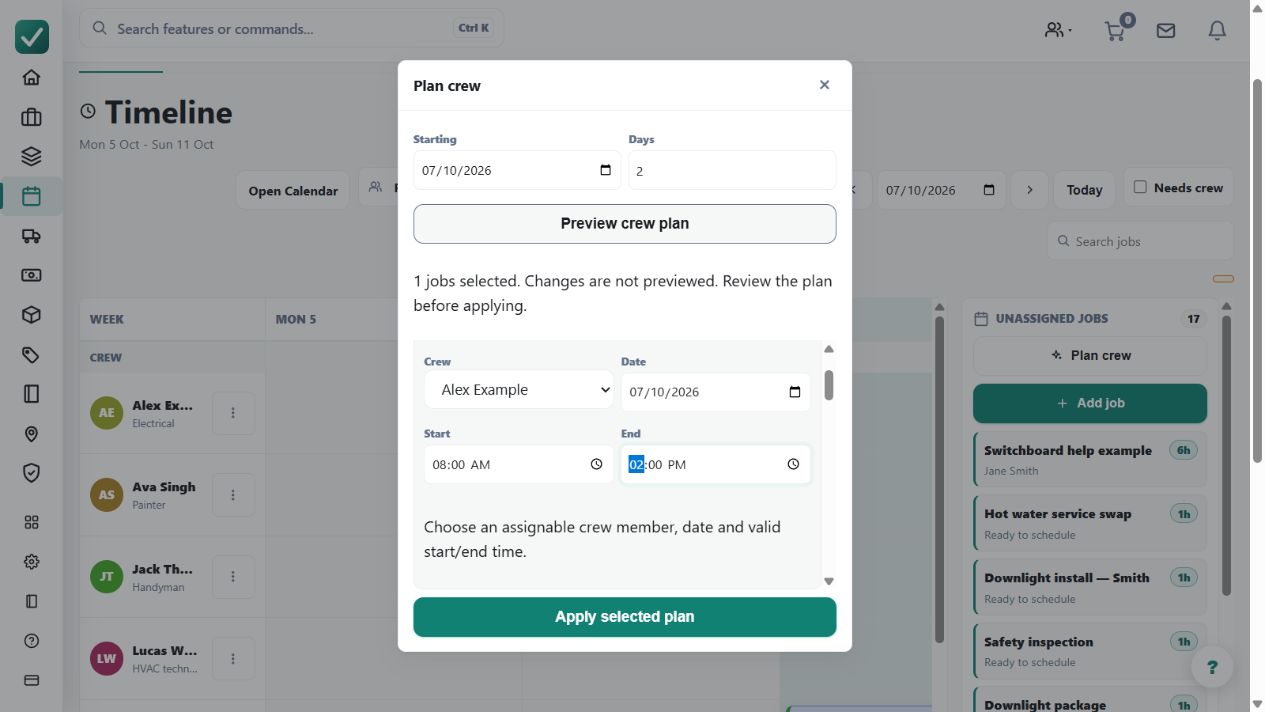
- Open Business Planner at /dispatch and choose the planning date.
- Use the dispatch auto-assign or optimise route action where available on the planner.
- Review the proposed worker, distance, and day order before leaving the assignments in place.
Worked example
Auto-assign unallocated service visits for a chosen day, then inspect each proposed worker and visit order before relying on the schedule.
This is an illustrative scenario. Use your own approved scope, quantities, rates and business rules.
Check the result
Check trade suitability, realistic travel, fixed appointment times and daily load. Open individual assignments when a recommendation conflicts with known site conditions.
Limits and troubleshooting
Trade matching is not the same as approved-licence checking. Route proximity alone cannot establish legal competence or that a particular worker can perform the job.
Follow the screenshot tutorial: Schedule and dispatch a job
Check current plans and feature availability · Browse every guide