Locations hub
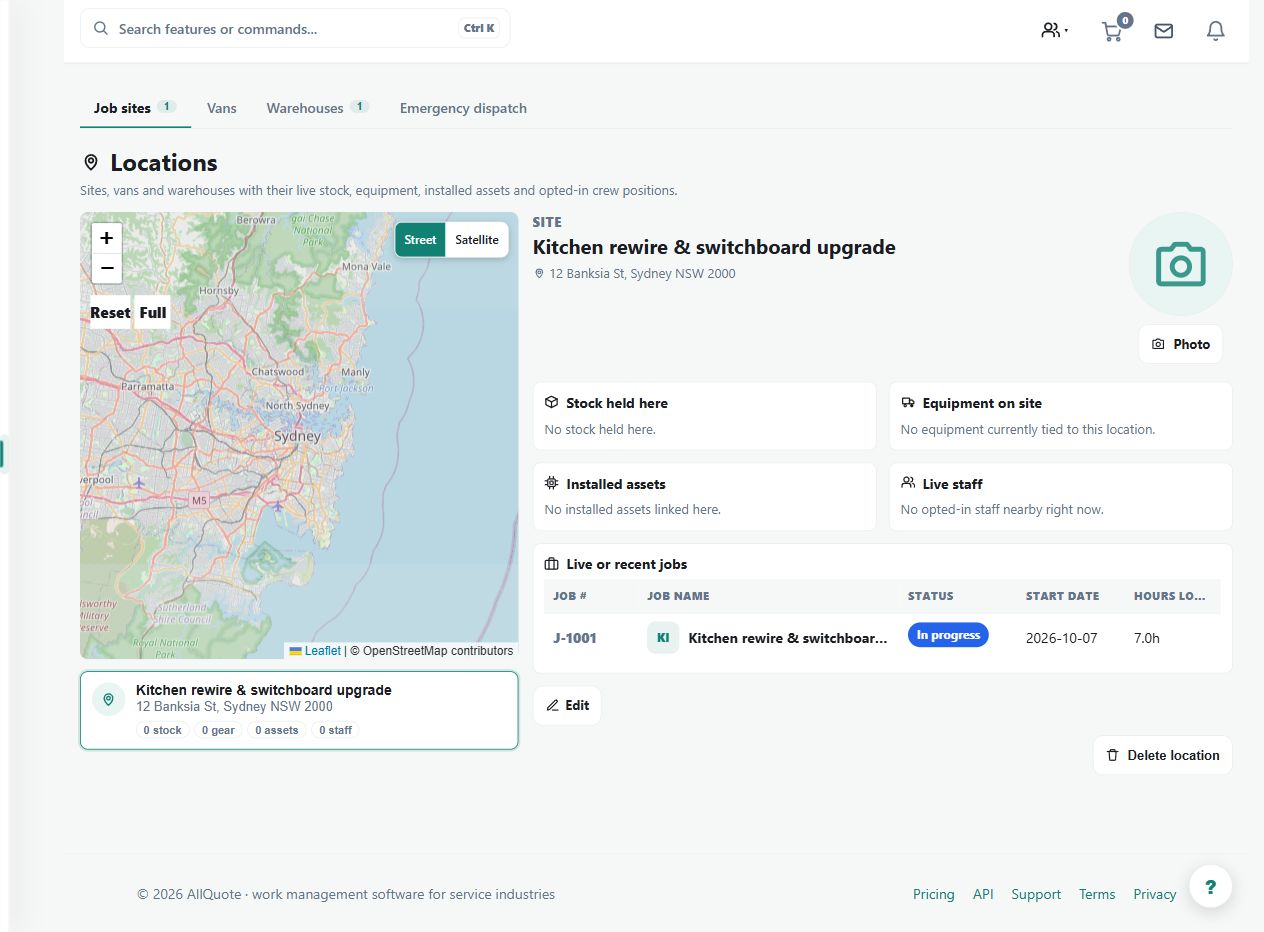
Unifies live job sites, vans, warehouses, stock, equipment, installed assets, and opted-in crew positions into one location view.
Use the Locations hub to connect the operational view of sites, vans, warehouses and resources.
Before you start
Availability: Free plan and above. Enabled business features, role permissions, connected providers and supported devices may add requirements.
Where to find it: Locations > Sites, vans, warehouses.
Maintain location identities and addresses, and keep stock, equipment and installed-asset records allocated correctly.
Step by step
- Open Locations at /locations.
- See sites, vans, warehouses and opted-in crew positions on one view.
- Open a location for the stock, equipment or assets held there.
- Use it before dispatching or restocking so the nearest resource is used.
Worked example
Before dispatching to a site, inspect its available resources and relevant work, then compare a van or warehouse when deciding where to obtain materials.
This is an illustrative scenario. Use your own approved scope, quantities, rates and business rules.
Check the result
Check the specific location's detail panel and the freshness of any opted-in crew position before acting.
Limits and troubleshooting
The hub combines recorded information; it does not certify physical stock or unrestricted live tracking. Verify movements, availability and sharing conditions where they affect the decision.
Check current plans and feature availability · Browse every guide