Quote and invoice themes
Controls document branding, colours, headers, line columns, terms, payment text, and PDF presentation.
Use document themes to give quotes and invoices consistent branding and a clear customer-facing presentation.
Before you start
Availability: Free plan and above. Enabled business features, role permissions, connected providers and supported devices may add requirements.
Documented roles: Owner, Office. A role name alone does not override the permissions set by your business.
Where to find it: Settings > Business Settings > Documents > Themes.
Prepare the approved logo, business details, payment wording and terms. Decide which columns and component detail customers need to see.
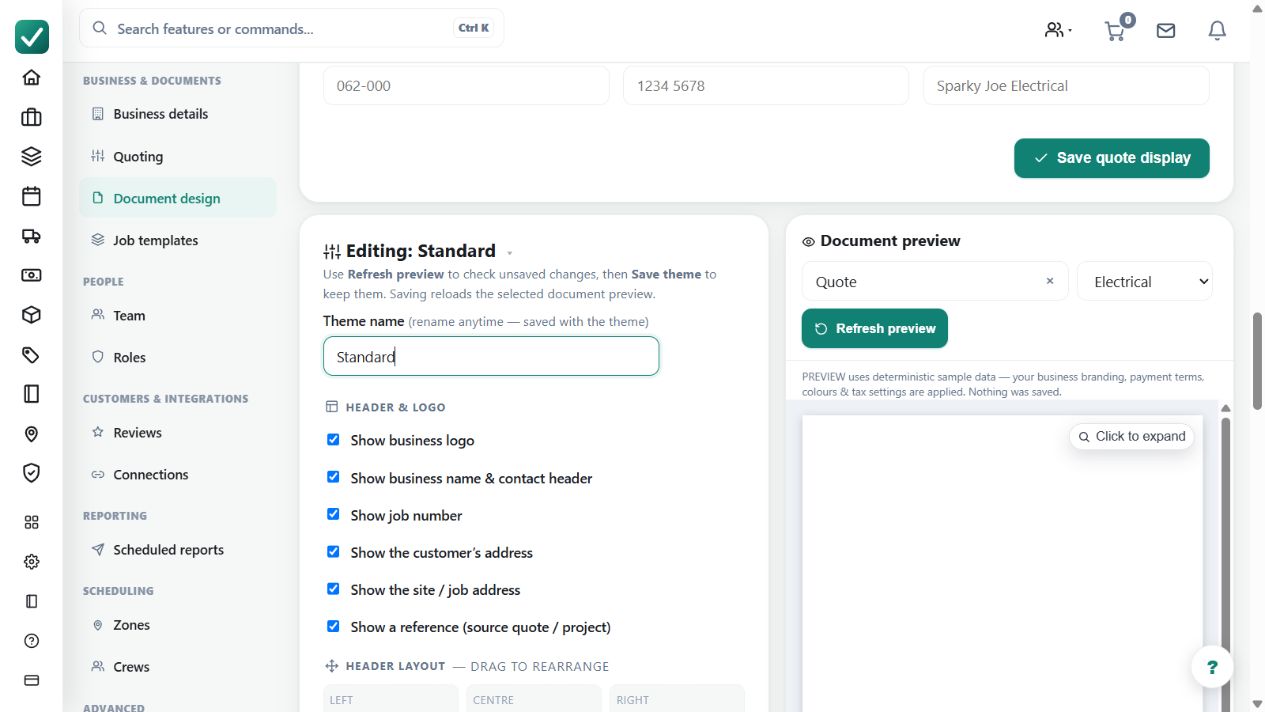
Step by step
- Open Business settings > Documents or go to /group-settings?tab=documents.
- Use the theme list to edit, duplicate, preview, or set the default document theme.
- Set the theme colours, logo/header options, line display, terms, payment text, and invoice wording.
- Save the theme, then open a quote or invoice PDF to confirm the customer document looks right.
Worked example
Duplicate a theme for a different presentation, adjust the header and line columns, then preview a quote with materials, labour, a deposit and terms before making it the default.
This is an illustrative scenario. Use your own approved scope, quantities, rates and business rules.
Check the result
Inspect a real PDF rather than only the settings preview. Check long descriptions, totals, page breaks, payment details and the intended customer wording.
Limits and troubleshooting
A theme controls presentation, not whether the underlying price or tax treatment is correct. Review both document content and calculated totals before issuing it.
Follow the screenshot tutorial: Create a quote
Check current plans and feature availability · Browse every guide