Step 1
Open the invoice
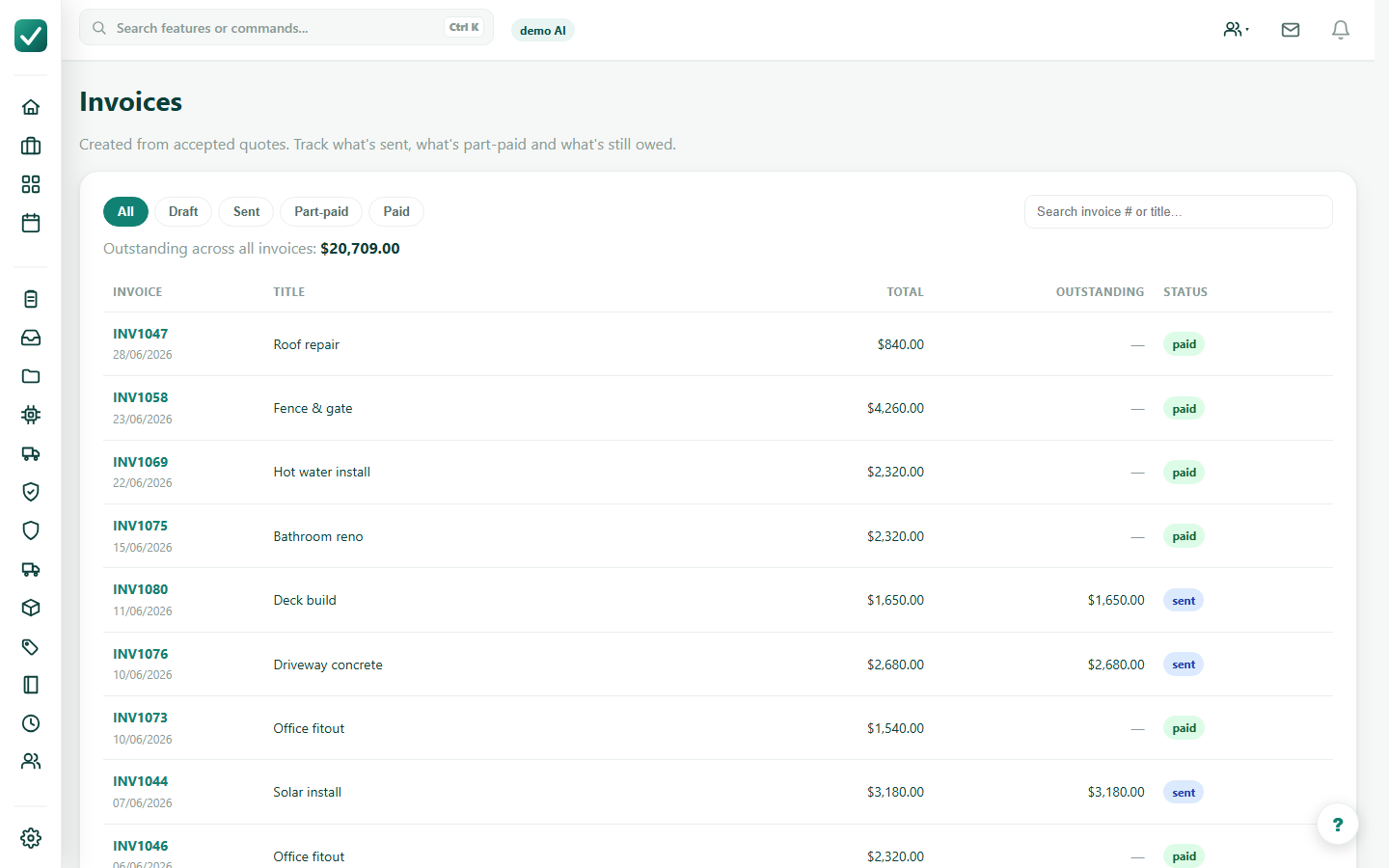
Use Invoices, a job money section, or a quote action to open the invoice that needs payment.
Tutorial
Open an invoice, choose a payment method, collect or record payment, and confirm the balance.
Use Invoices, a job money section, or a quote action to open the invoice that needs payment.
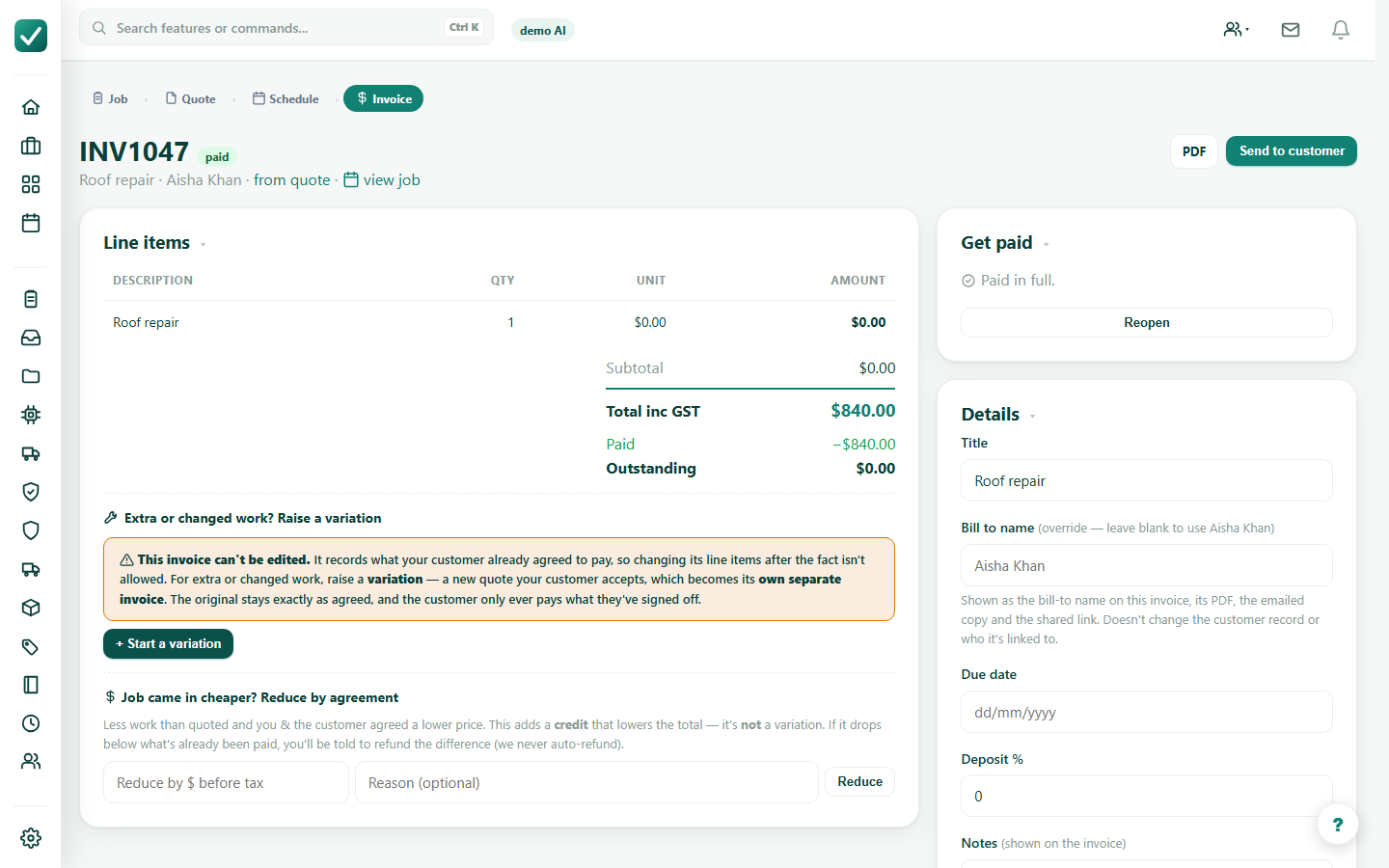
Check the invoice total, paid amount, outstanding balance, deposit, and available payment methods.
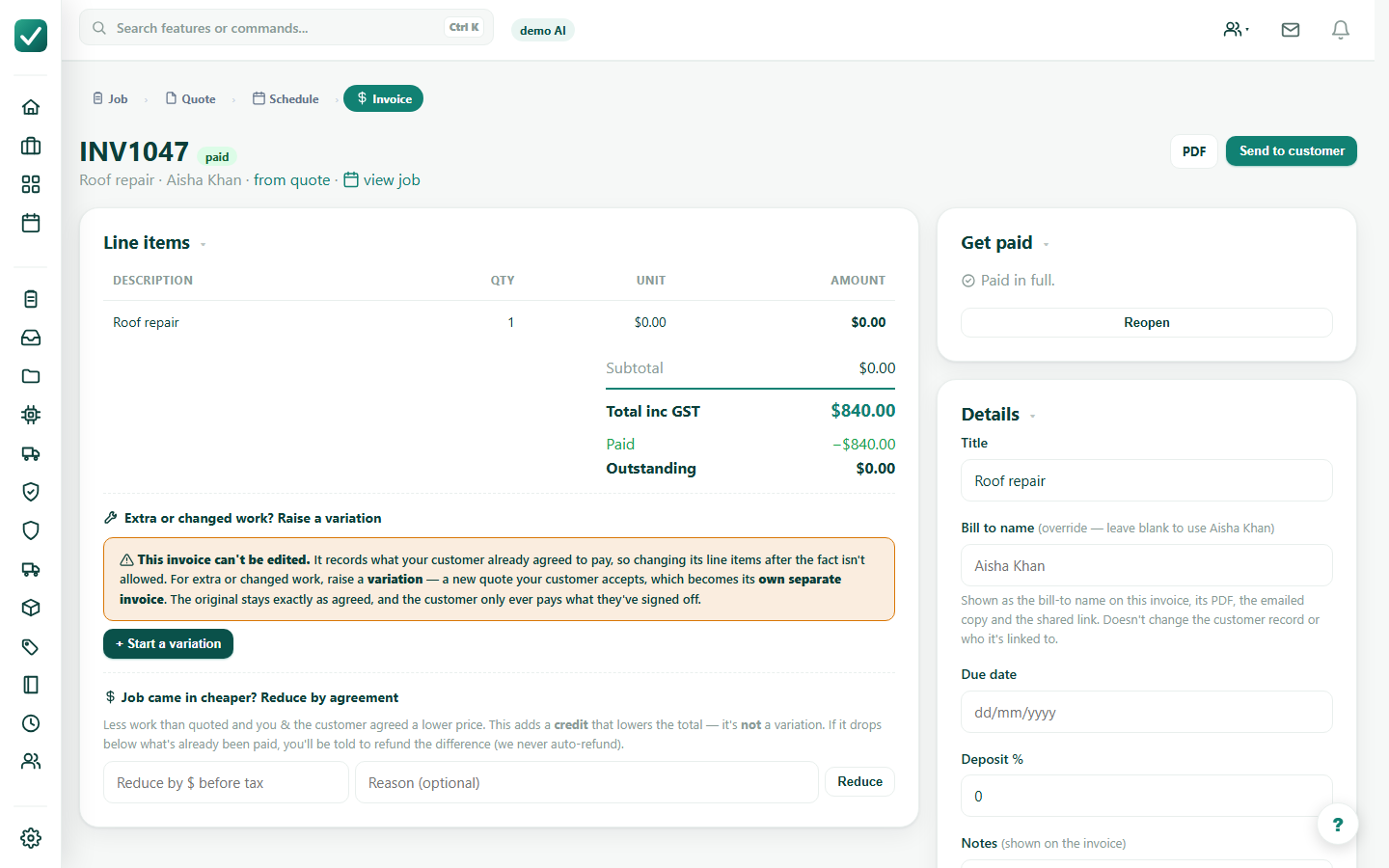
Send the online payment link where available, or record a cash, bank, cheque, card, or other manual payment.
On supported mobile devices with the payment provider configured, use Tap to Pay. Otherwise use online payment or manual recording.