PDF forms, prestarts and checklists
Turns an existing PDF into a Team-and-above form, checklist or equipment prestart that workers can acknowledge or complete in a phone browser, with a tamper-evident archived record copy for each completion.
Use an existing PDF when the business needs workers to review or complete a familiar checklist, prestart or form on a phone browser.
Before you start
Availability: Team plan and above. Enabled business features, role permissions, connected providers and supported devices may add requirements.
Documented roles: Owner, Office, Team. A role name alone does not override the permissions set by your business.
Where to find it: Work > Compliance Hub > Checklists > Upload PDF prestart/checklist.
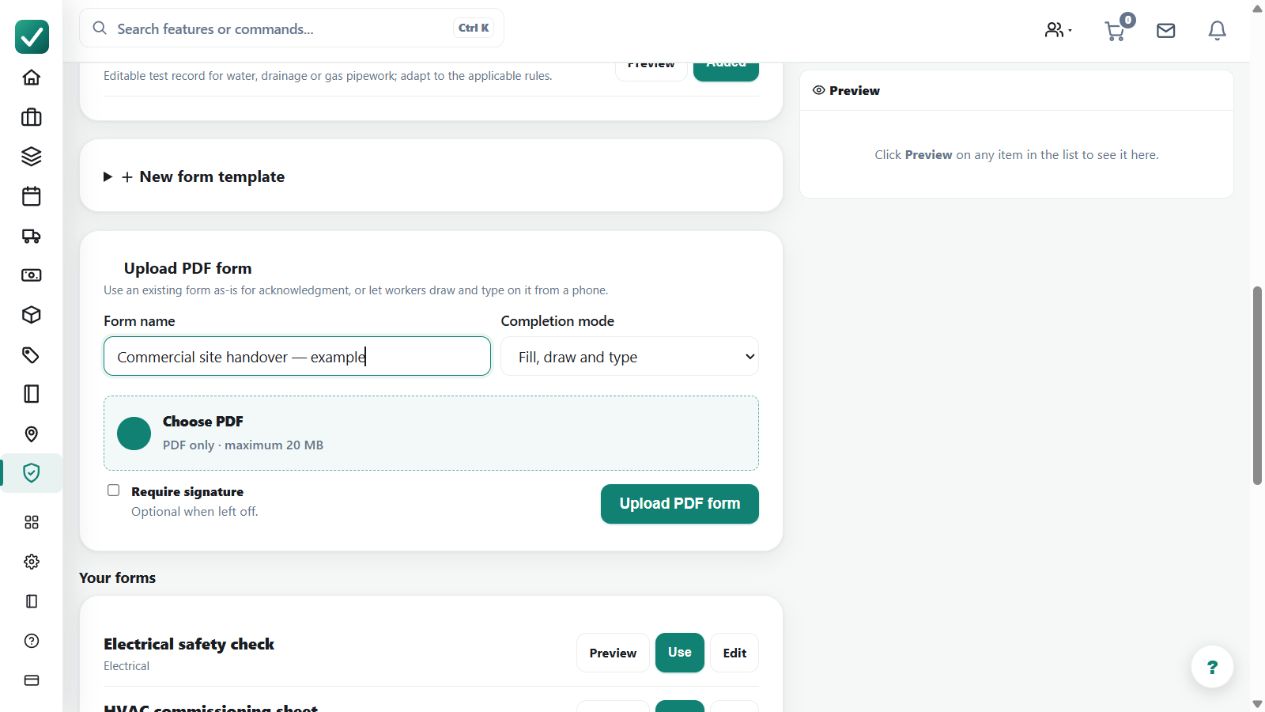
Upload the approved PDF and choose Acknowledge only or Fill, draw and type. Decide explicitly whether a signature is required for future completions.
Step by step
- Open Compliance Hub at /safety. Under Checklists, choose Upload PDF prestart/checklist; for another form, open Custom forms and choose Upload PDF form. Name the template and choose Acknowledge only or Fill, draw and type.
- Let the template creator decide whether Require signature is checked. For equipment, open the equipment item > Prestarts, attach the PDF template, and use Edit PDF template when its name, future completion mode or signature setting needs to change.
- Open the PDF from the job or equipment prestart in a phone browser. Acknowledge only requires every page to be reviewed before acknowledgment; Fill, draw and type provides Ink, Text and Check tools for freehand marks, typed notes and checkmarks.
- Save a draft as needed, then choose Complete & lock. AllQuote preserves the original PDF and creates a separate tamper-evident archived PDF record copy for that completion, including its completion details and any supplied signature.
Worked example
For a plant prestart PDF, attach the template to the equipment. The worker reviews the pages, adds the required marks or text, saves a draft if necessary, and selects Complete & lock.
This is an illustrative scenario. Use your own approved scope, quantities, rates and business rules.
Check the result
Open the archived record copy and check completion details and any supplied signature. Confirm the original template remains separate from the completed record.
Limits and troubleshooting
A saved draft is not a locked completion. The archived copy is tamper-evident, not a claim of regulatory certification; template quality and the answers still need review.
Check current plans and feature availability · Browse every guide